
Service for automated headless browser testing of Jupyter notebooks
Introduction
Collaboratory Lab end-users develop Jupyter Notebooks to perform a wide variety of actions such as execute experiments, reproduce scientific/published results, and run workflows. These actions can also be linked to other core EBRAINS components (e.g., Knowledge Graph) or APIs which are necessary for their execution. Consequently, testing and determining the probability of successful execution of important public facing Jupyter notebooks forms an important part of the Quality Assurance (QA) in EBRAINS. Tests should be performed to ensure that all necessary resources are available for a successful execution while the visualization of test results can provide useful insights to Notebook owners. Furthermore, Notebook owners need to run the notebooks they have developed in advance to check that the desired results can indeed be produced before publishing it or sharing it with other users.
To satisfy the above requirements, a dedicated service for executing automated headless browser testing of Jupyter Notebooks has been developed during Phase 2 and a first version has already been released. The service is in production operation and available to all EBRAINS end-users.
In the present document, the steps required to register a notebook to the automated testing service and how the testing results can be accessed are documented.
Testing Service
Current features
At the current state, the service is operational at this endpoint and ready to be used by potential end-users. The pipeline that the service executes automatically once a week consists of the following actions:
Collaboratory Lab container setup
- Connects to the Lab hub
- Selects one of the Lab Execution Sites (CSCS by default) and then performs login to the Collaboratory
- Selects the official EBRAINS Docker image for the Collaboratory Lab and starts the server
Testing Notebooks
The following procedure is implemented for each of the notebooks that have been registered to be tested: - Opens the link of the notebook to be tested, loads the notebook itself and checks if the Collaboratory Lab container is available
- Checks if the kernel is not busy and restarts the kernel in order to run the test in a clean environment.
- Executes the notebook cells one-by-one.
If at least one cell raises an Exception or Traceback the result of the test is FAIL and the user is notified via email. The message body of the email includes a link to the artifacts produced by the service.
Prerequisites
Before a notebook owner registers a notebook for the service the following actions must be taken:
- The notebook owner requests access from TC to the following GitLab repository:
The tests are executed by a GitLab CI pipeline, coordinated by TC, in the above GitLab repository. Notebook owners receive a notification email in case of a failed execution with a url to the artifacts folder. The artifacts folder includes screenshots that depict the execution flow and what went wrong. Hence, the notebook owner needs to have access to this code repository. - The notebook owner provides access to the TC service account for the Collab where the notebook is located.
The tests are managed and executed using a service account. Consequently, the service account must have at least view access rights to the collab in order to load the notebook. The service account’s username that must be provided with the proper access rights is “tcsvacc”
As soon as the notebook owner completes these actions, the following requirements should be considered. A notebook owner: - must not register notebooks with cells that wait for user interactions (e.g., user inputs)
- should use the service to test mainly core/critical public notebooks to ensure that notebook's end-users will not face issues when executing them.
- is encouraged to include notebooks with estimated execution time of (no more than) 20 minutes.
The last two requirements arose because the aim is to test specific services or APIs that a notebook uses and not, for instance, notebooks that run long-time consuming experiments.
Register a notebook to the testing service
There are two options for the notebook owner to register a notebook:
- using a GUI widget (testing_widget.py)
- programmatically, using a python wrapper (testing_wrapper.py).
A prerequisite here is to download the corresponding script that is needed to implement each option from the GitLab folder.
Register via widget
- Open the following registration script: https://lab.ch.ebrains.eu/hub/user-redirect/lab/tree/shared/Collab%20Robot/front-interface-notebooks/interface.ipynb
2. Execute the first cell and the GUI appears with the respective parameters you need to fill:
- Link: The shareable link of the notebook which you can get by pressing:
right_click on the notebook’s filename --> Copy Shareable Link
like it is depicted below

- notebook name
- developer’s name/notebook owner
- email address(es)
The address(es) where the notification email will be sent in case of failure. More than one email address can be registered - max runtime
The estimation runtime in seconds. - execution frequency
The frequency in days the notebook will be executed. E.g., 7 = once in 7 days (once a week)
Example:

- Fill the fields and click “Submit”. One of the following messages will be returned:

In case the post request was successful, and the notebook saved in the database table that includes all the declared notebooks
In case the post request was successful, but the notebook already exists in the database

In case the post request was not successful the user should contact TC by opening a support ticket.
- Finally, delete the cell in which the widget was imported and executed, so the test will not execute it again.
Register programatically
Use a wrapper
To register a notebook programmatically, the notebook needs to be accessed via the shareable link. The notebook owner must create this URL before declaring the notebook to the service. Afterwards, the notebook owner must input the required parameters by writing them as environmental variables on the URL, based on this latest collab feature.
The steps to declare a notebook are the following:
- Download the testing_wrapper.py script:
- Create the shareable link for the notebook. The format of a shareable link is the following:
https://lab.ebrains.eu/hub/user/user-redirect/lab/tree/shared/COLLAB/NOTEBOOK_NAME.ipy
or you can get it by pressing:
right_click on the notebook’s filename --> Copy Shareable Link
like it is depicted below: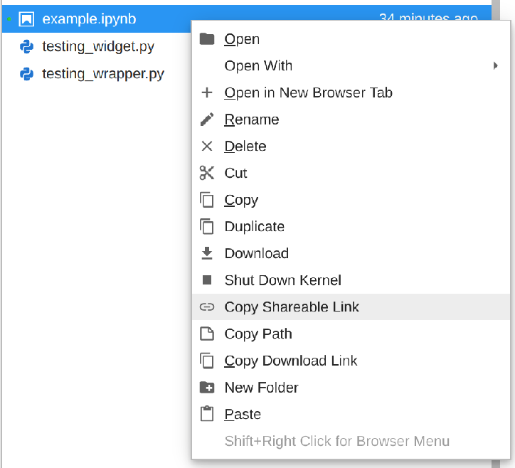
- Create the final URL
The required parameters which can be provided as environmental variables are the following:
- Link: The shareable link of the notebook. You can get it by clicking Copy Shareable Link as described in step 2
- notebook name
- developer’s name/notebook owner
- email address(es)
The address(es) where the notification email will be sent in case of failure. More than one email address can be registered - max runtime
The estimation runtime in seconds.
- Open the final link created in step 3
- Import the testing_wrapper.py script into the same folder the notebook lives
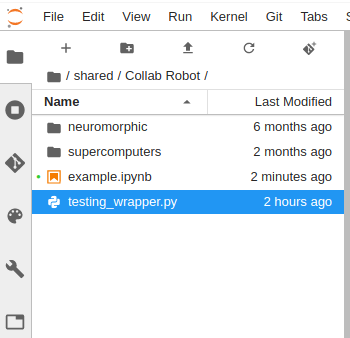
- Create a new cell and import the wrapper function as the line to call it as well

- Execute only this cell. One of the following messages will be returned:
In case the post request was successful, and the notebook saved in the database table that includes all the declared notebooksIn case the post request was successful, but the notebook already exists in the database

In case the post request was not successful the user should contact TC by opening a support ticket.
- Finally, delete the cell in which the wrapper was imported and executed, so the test will not execute it again